Tips
Optomized for Solo Instruments
-
Prism is designed to work with solo instrumental tracks. If you don't have access to the isolated instrument track, use a stem splitter to generate one.
-
Prism works best with clean, non-distorted sound sources (distortion and "fat" synth sounds create lots of extra overtones that are difficult to untangle). If you are recording guitar tracks, it's best to record them clean, use Prism to extract midi, then add distortion.
Try different algorithms
Don't be afraid to change the Prism algorithm to see if you can get better results. You may find guitar dist or grand piano work better than general. For example, you may get better results on a "buzzy" synthesizer by using the guitar dist algorithm instead of general.
Cleanup Vibrato
When vibrato is used, the resulting notes will usually contain both the low and high notes of the vibrato. A quick way to convert this to just one note is to select the notes in the vibrato, right-click and select Join Notes, finally delete the midi note above the base vibrato note.
Use keyboard shortcuts:
- J to Join selected notes
- del to delete selected notes
Use Pitch Overlay
It is often helpful to view the Pitch overlay to help detect possible notes that are not assigned a midi note.
If the MIDI button is on, and the Pitch overlay button is on, then the current midi notes are displayed as rectangles (not filled in) so you can view the Pitch overlay data without it covering them up.
In the screen shot below, midi notes are displayed as red rectangles and Pitch data is displayed in blue. Note the one blue square that does not have a red rectangle (midi note) around. Since this blue square is "strong" (weaker pitch information will be displayed more faded) it is likely a note that we want to represent as midi. A quick listen will usually confirm wheter it is a true note or a ghost note.
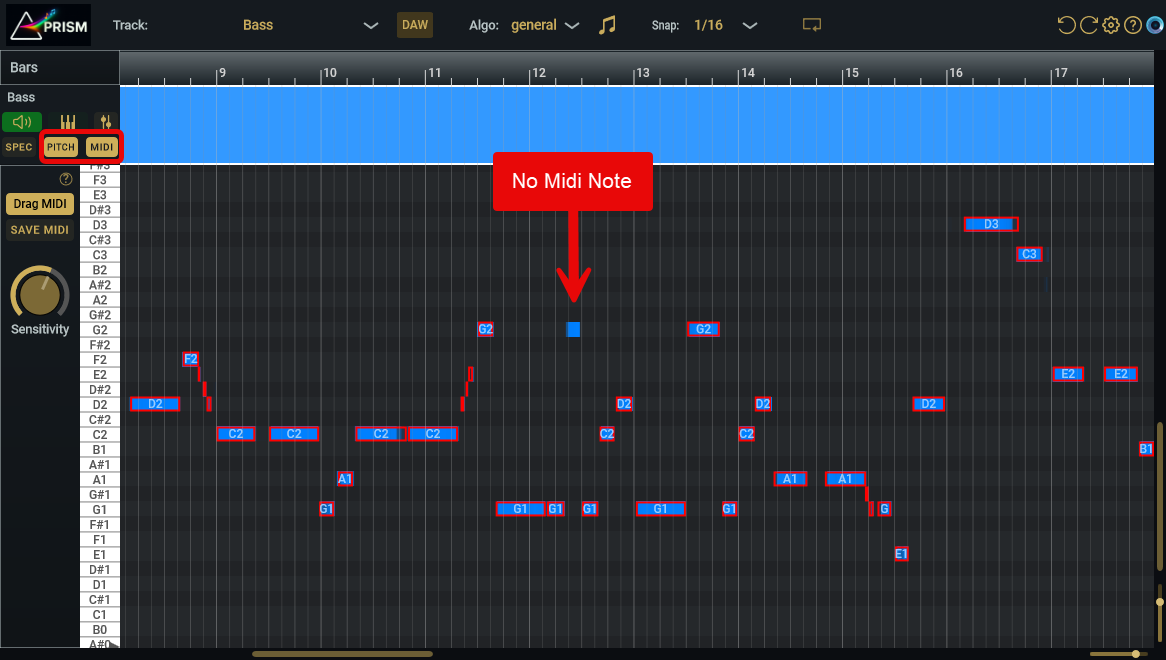
Usually, if you see these pitch notes without a midi note, you can simply adjust the Sensitivity knob to convert them to midi. If adjusting the Sensitivity knob results in other pitches getting converted that you don't want, you can simply draw in the midi note yourself by holding Alt/Option and dragging the mouse.
Use Spectrogram Overlay for More Detail
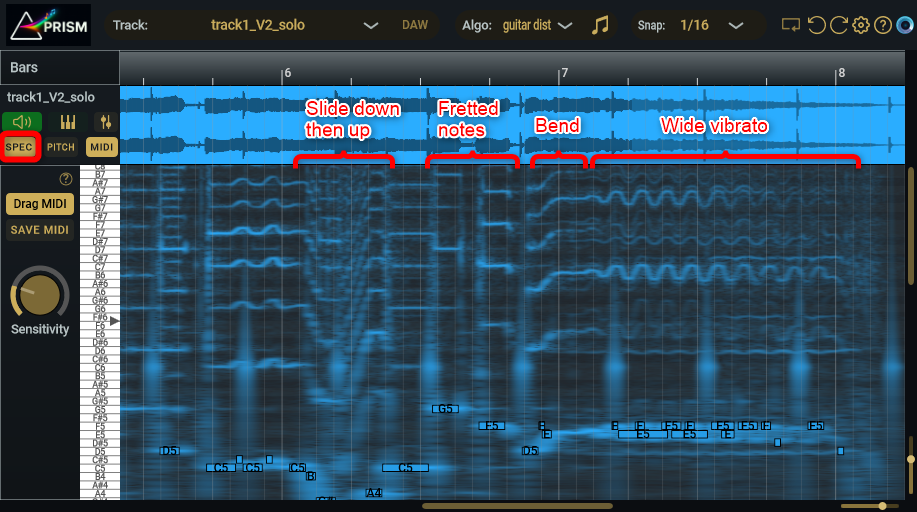
Use the Spectrogram overlay to visually see bends and vibrato
These effects are clearer at higher frequencies. The example below shows the spectrogram of a guitar solo that features sliding down and up the fretboard, fretting notes normally, bending a note, and applying a strong vibrato.
Use Midi Playback with Audio to Listen for Discrepancies
When transcribing, pan audio to left, midi to right. Doing this will often make it easier to hear the recorded audio and the converted notes.
Restore Previous Zoom Level
If you find yourself zooming in and out a lot, you may find it easier to use Prism's Zoom tool and its Restore Zoom command.
Use Ctrl + Alt/Option + mouse-drag to select an area to zoom in on. When finished editing, quickly go back to the previous zoom level by right-clicking and select Restore previous Zoom.
Manage Captured Audio (non-ARA)
In non-ARA mode, Prism has to capture/record and save the audio data. By default, captured audio is saved to your Music folder in a directory it creates named, "Prism ". You can this folder to another location in the Settings editor's Capture Audio Path field.
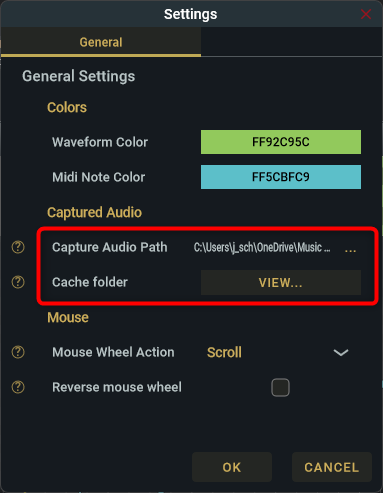
If you capture a lot of audio, you may want to occasionally delete captured audio files that you no longer need. A quick way to view these files is to click the Settings editor's View... Cache folder button.
It is safe to delete captured audio files. If you do, any converted midi is not affected. However, you will not be able to change Prism's algorithm nor view the Spectrogram. If you later decide you need to do this, just delete the audio clip in Prism and re-capture the audio.
ARA Specific Notes
-
Prism analyzes the entire audio track even though the clip may only expose a section of audio. This ensures if the clip is later expanded, you won’t lose modifications.
-
If a track has many clips, consider bouncing the track before applying Prism.
-
If you bounce a track, make sure MIDI playback is disabled or Prism is bypassed; otherwise the bounce will include Prism’s MIDI playback.
-
For large audio files (i.e. > 30 mins), it’s best to break the audio into smaller sections.
Non-ARA Specific Notes
Speed-up Capture
This is firmly in the "hack" category and depends on how your DAW handles bouncing or freezing tracks. Capturing Audio is non-productive but you may be able to get the audio into Prism much quicker.
The idea is to Start Capture in Prism, then use your DAW's bounce or freeze command. This will be much quicker than playing the audio in real-time. If you froze the track, the DAW likely removed Prism but if you UNDO the freeze command and open Prism, you may find that Prism received the audio and generated midi for it!