What's New in Song Master/Pro 5
New: Trident - our Third Gen Stem Splitter
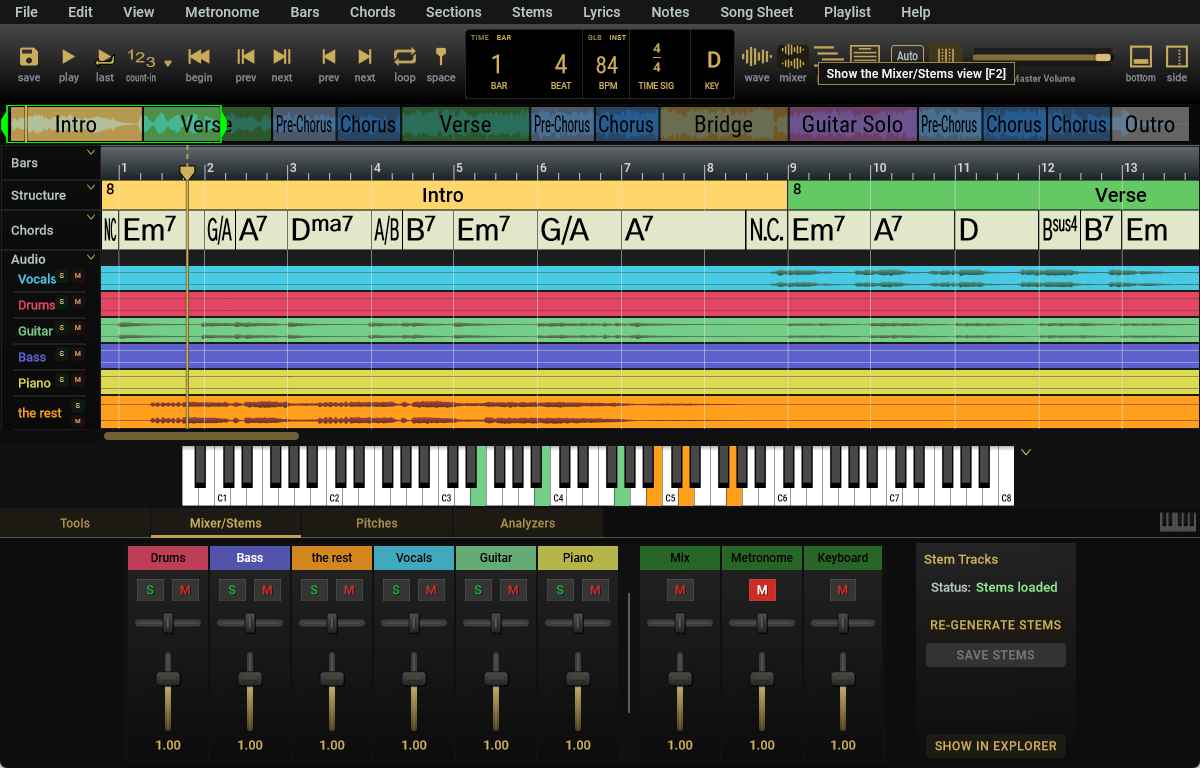
- Extract high-quality stems for: Vocals, Drums, Bass, 'the rest'; Pro adds Guitar and Piano
- Two Stem Models: 4-stem and 6-stem (6-stem is in Pro only). The 4-stem model generally produces the highest quality, the 6-stem model separates Guitar and Piano.
- Control Stem Algorithm's Compute Time vs Quality. High setting is about twice as fast as Highest
- Trident extract stems on your computer so we do NOT send your audio to the cloud for processing. Because of this, the time to extract the stems depends on your cpu.
- We've added a Progress bar with estimated time to complete and abort button
New: Prism Audio-to-MIDI (Pro)
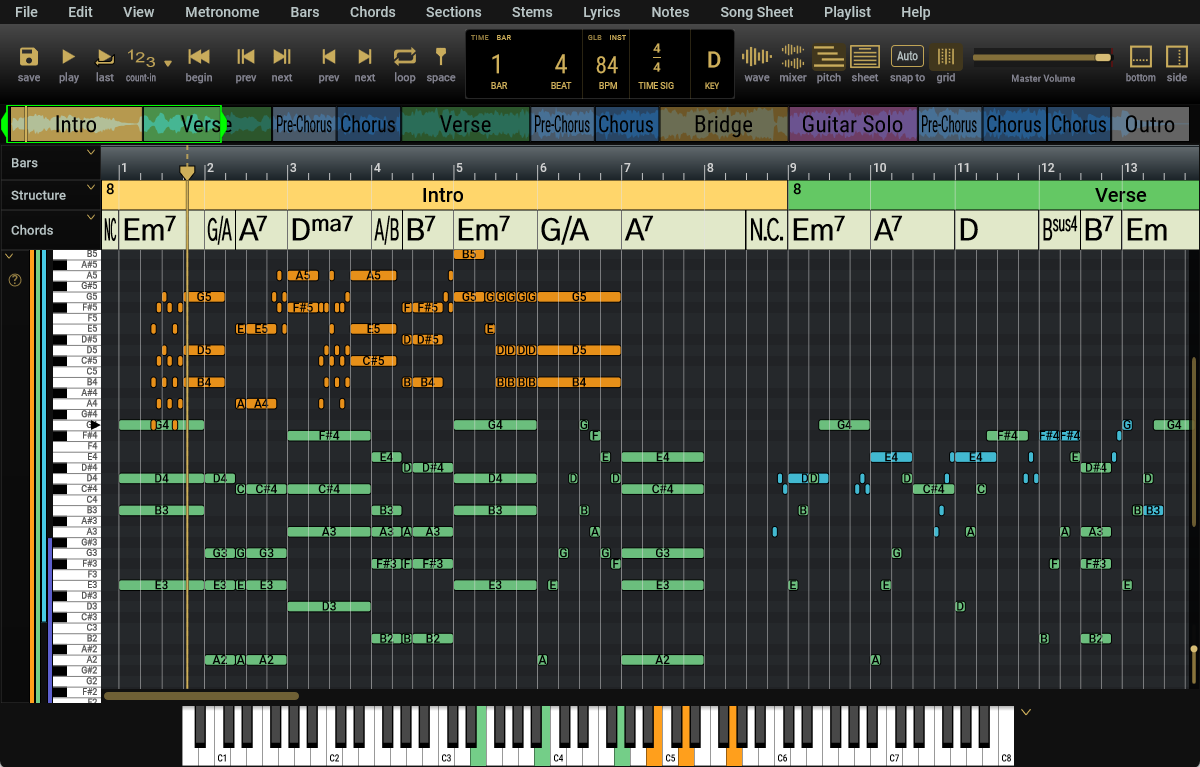
- SMP now uses our Prism algorithm for excellent audio-to-MIDI conversion
- Convert isolated instrumental tracks with high-quality
- This is a powerful combination when used with our stem splitter
Show the onscreen Piano ('p' key) to see notes at the playhead mapped to the keyboard
New: Midi Editor (Pro)
- Full featured midi editor allows you to edit directly in SMP
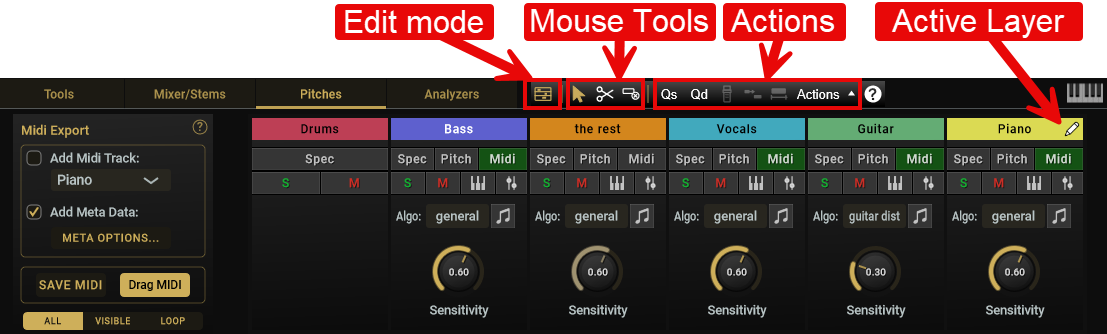
Toolbar
- Edit mode button to toggle editing
- Mouse Tools:
- Smart tool - use for most selection and note editing tasks
- Split tool - use to split midi notes at clicked point
- Delete tool
- Action Buttons
- Quantize Starts - quantize note starts (uses current snap setting)
- Quantize Durations - quantize note durations (uses current snap setting)
- Join Notes - join all selected notes on a per row basis (may select multiple rows)
- Legato - use to lengthen and trim notes for solo/mono note seelction
- Fixed length - note durations are set to the current snap setting
- Actions menu (select notes before clicking)
- Velocity Editing - toggle editing of note velocities
- Quantize Starts - quantize note starts (uses current snap setting)
- Quantize Durations - quantize note durations (uses current snap setting)
- Quantize Starts & Durations
- Join Notes - join all selected notes on a per row basis (may select multiple rows)
- Legato - use to lengthen and trim notes for solo/mono note seelction
- Fixed length - note durations are set to the current snap setting
- Remove Overlap (Mono) - make the selected notes mono-phonic (only one note playing at a time)
- Remove Overlap (Poly) - trim notes that may overlap in the same row
- Help button - displays note editing shortcut keys
Edit Mode
- When in edit mode, only one stem track is editable at a time.
- To change the active editing stem track, click the header to move the "pencil" icon to it.
Midi Track Controls
Each stem track gets its own set of MIDI controls. These controls are grouped into 3 sections.
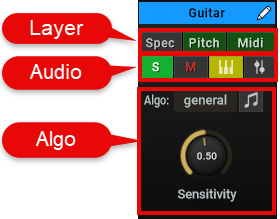
Layer Row
The three buttons at the top toggle the data displayed for the track:
- Spec - Display the Spectogram
- Pitch - Display the refined pitch spectrogram
- Midi - Display and edit midi notes
Audio Row
- S - to Solo the Audio track
- M - to Mute the Audio track
- Midi playback - Toggle playing back the midi on Song Master Pro's internal Piano
- Play settings - Contains a popup dialog to set the Audio and Midi playback volume and panning
Algo Section
- Use the dropdown to select one of Prism's three algorithm.
- general - best for majority of tracks
- guitar dist - use for distored guitars
- grand piano - use for high-end acoustic piano recordings
- The music-note icon will re-run the audio-to MIDI algorithm
- Sensitivity controls the threshold used to detect midi notes. Higher values produce fewer notes.
Improved MusicXML export (Pro)
Previous versions supported exporting all the song details (as a Song Sheet) except the midi notes. With version 5, you can now select which tracks to export as musical notes.
-
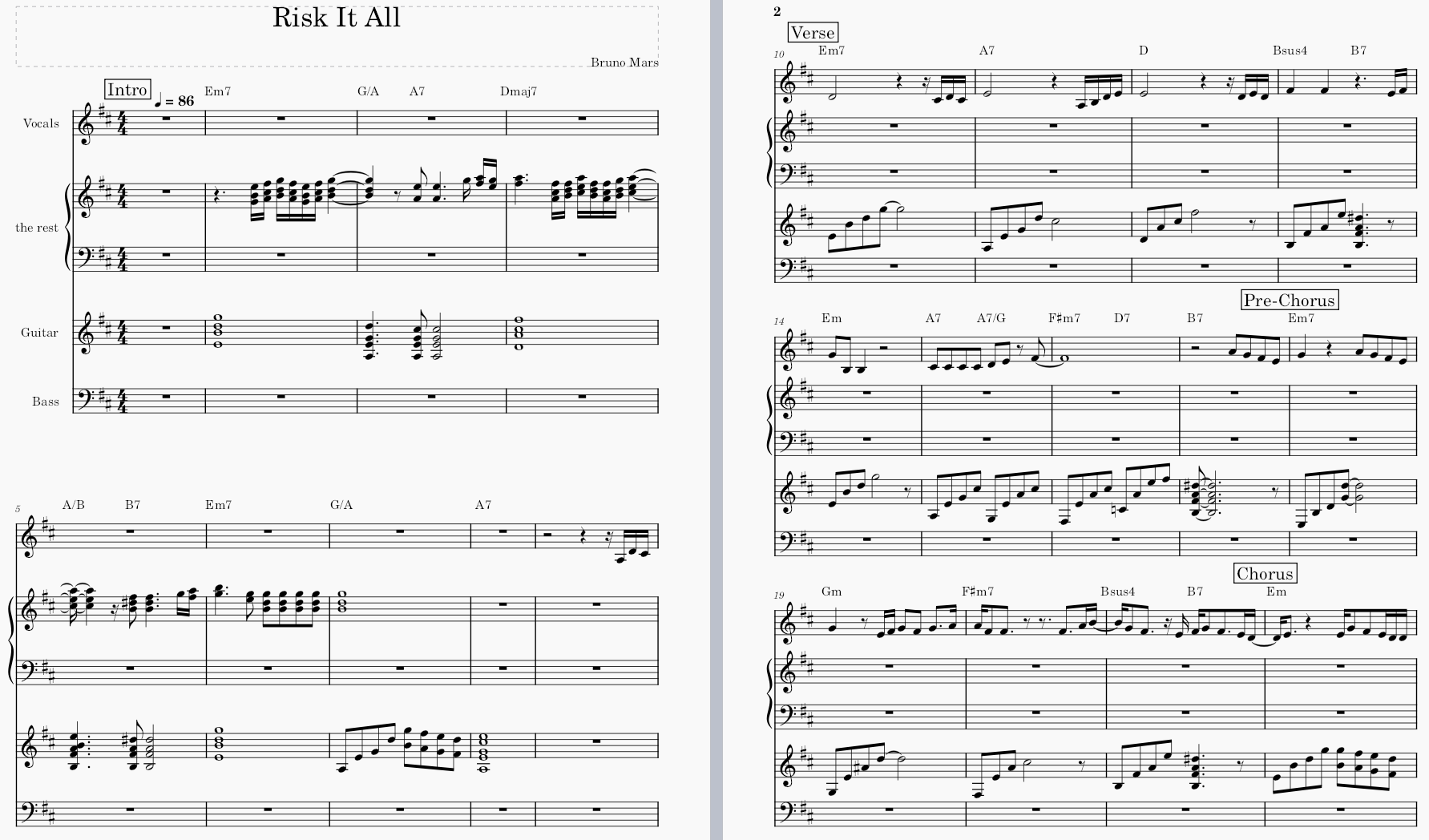
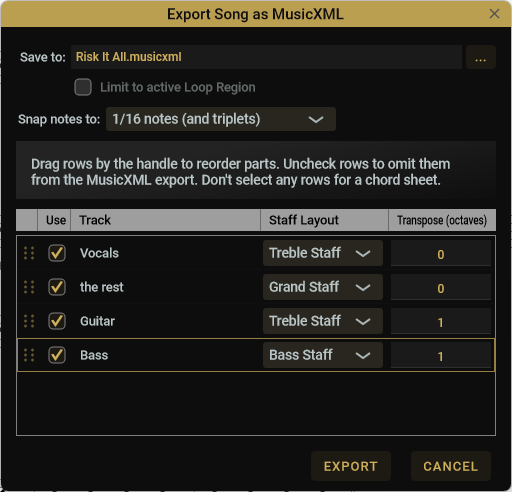
Select one or more midi tracks to export the notes in MusicXML format
-
"smart" snapping intelligently handles straight and triplet notes to quickly provide a readable score. Use the midi editor's tools for more refined modification.
Export a song in MusicXML format and import it into any notation app for further refinement and printing. If you don't have one, checkout MuseScore, it's free.
Quick Notes When Exporting for Notation
There is a big difference between performance midi (which captures precise note onsets and note durations--which may be held) and what is expected as music notation. For best looking results, you will likely want to:
- set the Snap setting to the appropriate quantization level
- select the notes to quantize
- quantize note starts and durations
- For arpegios and notes lengthened with a pedal, you will usually want to short the note durations. If the arpeggio is, say, 1/8th triplets, set the Snap setting, then use the midi editors Fixed Length to quickly adjust the note durations of the selected notes.
Song Sheet (Pro)
- Now supports zooming via shift+mouse-wheel and through menu Song Sheet -> Zoom
New: Song Projects
Song Master can now save "songs" into self-contained Song Project folders
Previous versions saved data to a single .song file. In version 5, data is now saved to a folder that contains:
- .song file (similar format as previous version)
- analyzed and edited audio-to-midi notes
- optional: stems
- optional: copy audio to folder
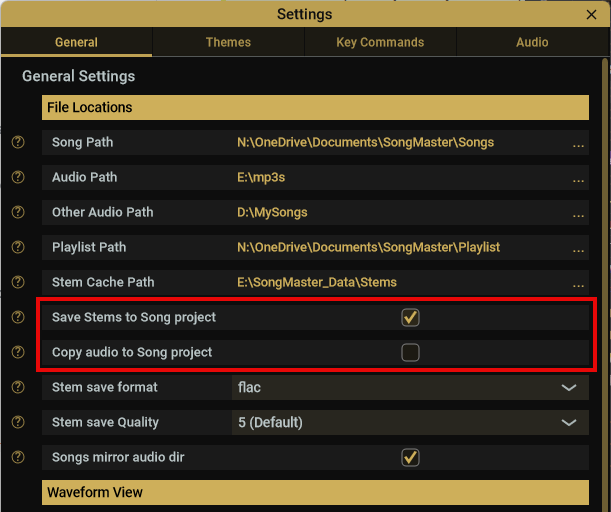
You now have the option to save generated Stem audio tracks to this project folder as well as copying the original stereo audio file.
The advantage of saving stems and original audio to the project file is that everything is nicely contained in one folder. This makes it easy to zip up this folder and send to your band mates.
The previous way is nice if you are concerned with saving a bit of disk space and/or prefer to have your stems saved to another folder or hard drive.
The Settings dialog, has options to save stems inside the project (or continue saving them to another folder) and an option to copy the audio file into the project folder. Pre-5 .songs will automatically be migrated to the new Project folder structure when they are opened.
Playlist
-
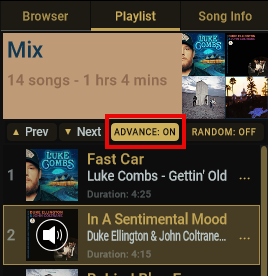
There is a new Advance button in the playlist's toolbar to toggle auto-advancing to the next song when the current song reaches its end. Auto-advance was previously implicitly enabled when you clicked the song's "Play" button in the Playlist.
-
Previously, if a song was loaded from the playlist, it implicitly would auto-advance to the next song. Now, when loaded it will not auto-advance unless it's corresponding play button is pressed. That is:
- click a playlist song's Play button: eligible for auto-advance
- double-click a playlist song or otherwise open it without the play button: not eligible for auto-advance. Do this when you just want to edit or work on a song without having it auto-advance when it reaches the end.
-
You can now add multiple songs from the Browser's Song, Audio, and Other tabs. Songs and audio files are now multi-selectable so you can add them all at once to a playlist
-
The active Playlist now has a context-menu option to add one or more of the songs in its playlist to other playlists.
-
Easily add the currently loaded and saved song to the active playlist by right-click in playlist and select Add Loaded song to Playlist
-
Renamed "Create/Add to playlist" -> "Add to playlist"
-
Sped up drag-scroll speed in Playlist
UI Re-Styled
- Reworked the Mixer and Pitch Tab UI
- Added horizontal scrolling to Pitch and Mixer tab if needed (useful if using external stems that are more than 6 or so tracks).
- Reduced height of the Overview, Section and Sub-Section track
Color Themes
-
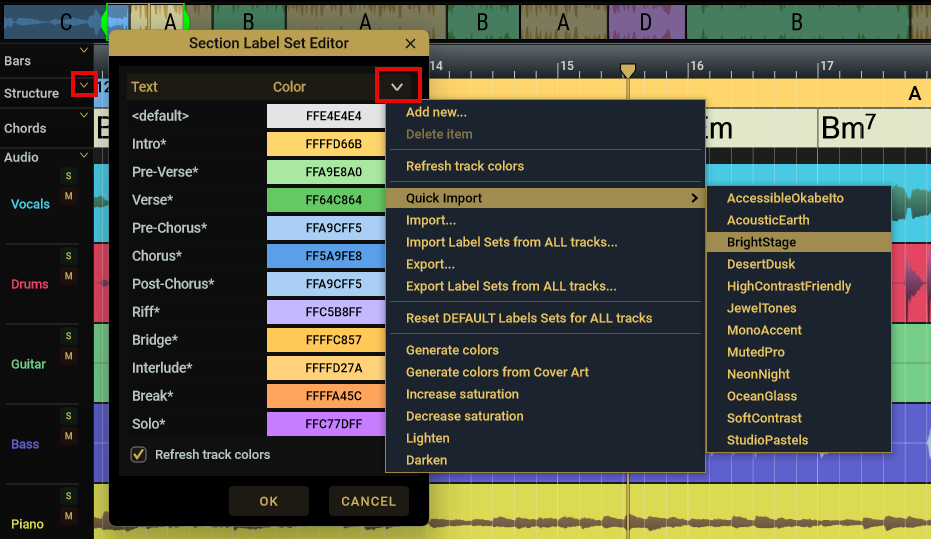
Sections, Audio Stems, and Chords, have several pre-defined "Color Themes" selectable by right-clicking in a track section header area (or click "v"), select Edit Label Set. Then in the Label Set editor, click its "v" to display menu and select an pre-defined set from the "Quick Import" sub-menu.
-
To reset back to Song Master's default color set, from the Label Set Editor's menu (see above pic) select "Reset DEFAULT Labels Sets for ALL tracks"
If you've used a previous version of Song Master and you haven't customized your colors, select "Reset DEFAULT Labels Sets for ALL tracks" to use Song Master's updated color themes.
When you change or modify the labels or colors you need to "Refresh" the current song to use the new colors. This is to prevent you from losing any custom color edits you may have made to a song. New song's you create, will automatically pick up the latest selected themes.
To Update a song to use the current color theme(s), right-click in the track header to display context-menu:
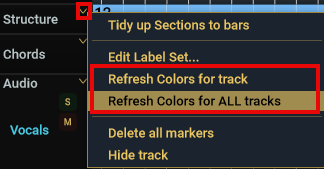
This menu let's you just update a specific track or update the colors used in all tracks.
Mixer View
-
You can remove stems that aren't used by right-clicking in the stem track's header
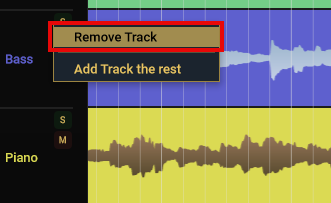
This is useful to remove a track that doesn't have any audio. Removing a track will not include it in the mix. If you only want to temporarily not hear a track, just click its Mute button. Removing a track doesn't not delete stem track so if you accidentally remove a track you can add it back.
- Track names now wrap (useful when using externally generated stems)
Lyrics
-
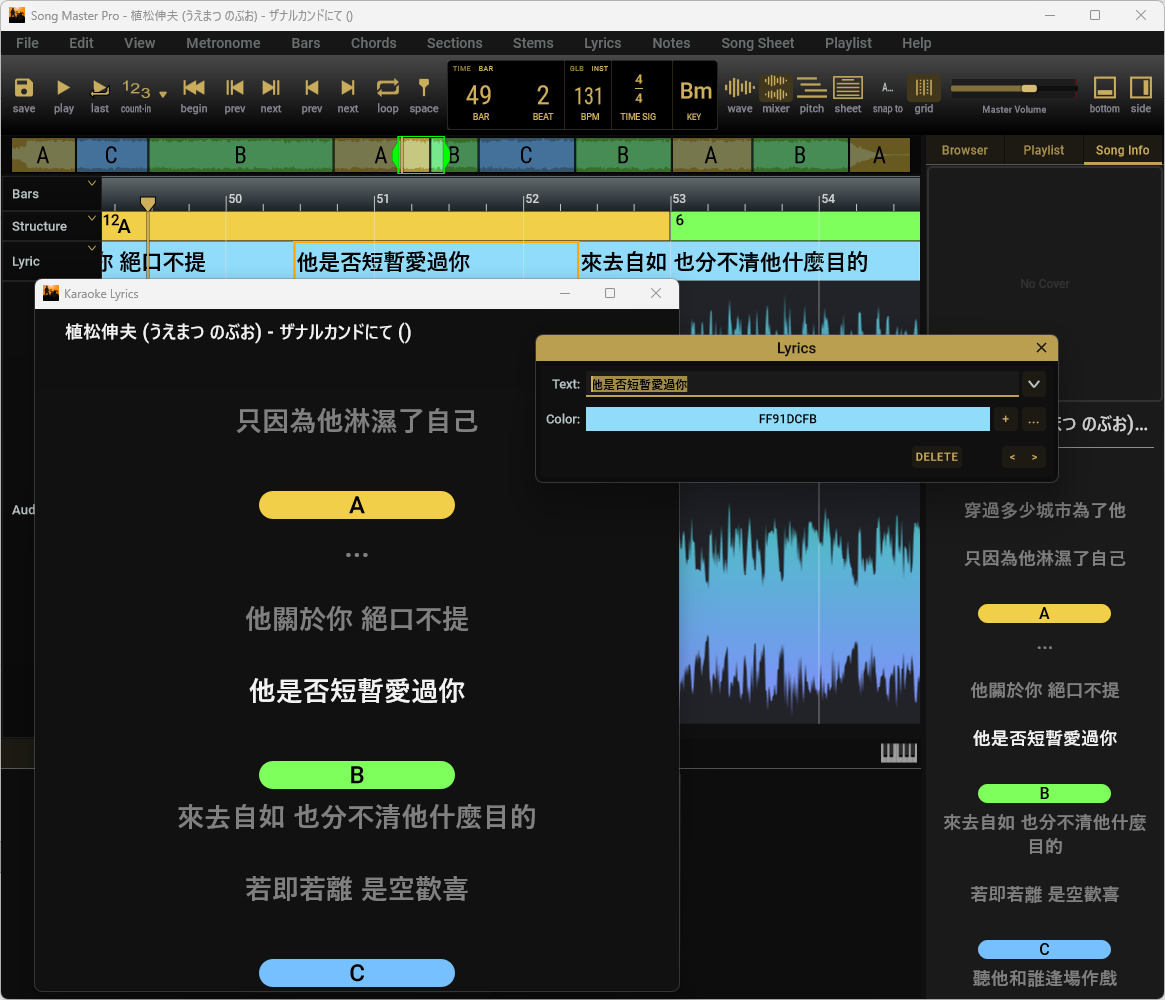
CJK characters are now properly handled for Lyrics
-
Lyrics menu added to top-level main menu to easily download, import, and export lyrics
Other
-
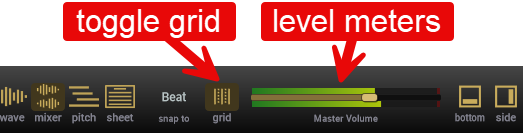
Option to display a snapping grid overlay
-
New: Level meter display on Master Volume
- Can be toggled on/off with right-click context menu
-
Tools Panel: Volume Faders allow higher levels of "boost"

-
Added vertical scrollbar and zoom control to Pitch view
-
File browsers now show specific icons for Song Master songs and audio files
-
Improved the Stereo panning algorithm to not attenuate normal audio levels
Audio Device Handling
- Improved handling when computer/audio device is goes into sleep/resume
- Improved handling when switching and disconnecting/reconnecting audio devices
- Fixed a potential crash related to ASIO device
Other Improvements and Fixes
- Tools, Mixer/Stems, and Pitches Panel now scroll horizontally if their content cannot be fully displayed
- Piano Vertical - now displays all note names instead of just C and G; reduced width of piano black keys
- Fixed: If Key/semitones changed, when SM starts and loads the song, the chords are not getting transposed (the chords would transpose correctly when song is loaded after SM is running).
- Fixed: Song Sheet Viewer was ignoring the transpose amount when initially displayed
- Fixed: When switching between songs while loading stems, the stems loading process could be left in an unfinished state and not get properly cleaned up. This could occur when quickly advancing through a Playlist and not waiting for a song to load.
- Unlock process: fixed isssue handling with certain characters in password that prevented unlocking
- When registering, password characters are now displayed and not hidden; so be careful no one is watching over your shoulder! :)
- Numerous other additions and improvements have also been made