Video Player
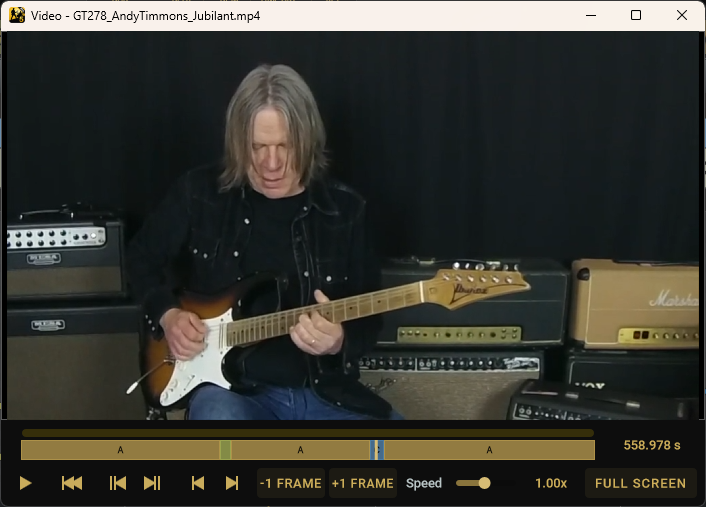
All of the analysis and practice tools available for audio files can also be used with video. When you open a video, Song Master treats it as containing music and analyzes is like a music audio file. You can use the Speed control to slow down video playback, scrub through the video, step 1-frame at a time, and more.
Loading Video
Use the built-in Side Panel's file browser to load videos in the Audio and Other tabs. You can also load a video from the File | Open audio/video file menu and by dropping the video file on Song Master's Window. You can also add videos to your Playlists and load them from there as well.
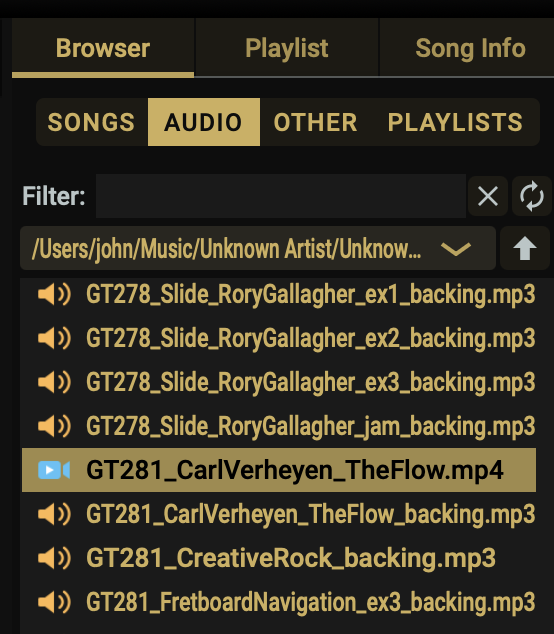
Since Song Master analyzes all the audio in an audio or video file, it's best for videos to be limited to one song. Videos are limited to 30 minutes in duration.
The following video formats are supported on most platforms: MP4, MOV, M4V, AVI, MKV, WebM, MPEG, and MPG, plus WMV on Windows. Actual playback and import depend on codec support provided by the operating system.
Show Video Player
The video player is displayed when opening a video. It is displayed in a separate window that can be resized and positioned; if you have multiple monitors, you may find it convenient to display the video on a different monitor.
You can show/hide the video player using Alt/Option + V, from the View menu, and by toggling the Video button displayed in the top Control bar.
Navigating the Song
The Video Player window has buttons to go to the previous and next Sections and Bar. You may find it more convenient to use the standard song navigation shortcut keys (i.e. Previous Section: Q, Next Section: E, Loop Section: W, etc.).

Positioning Playhead and Scrubbing
The timeline for the video is displayed along with the Section markers at the bottom of the window. Clicking in this area will reposition the playhead.
To Scrub, click and drag in this timeline/section area. For finer grain scrubbing, press Shift before clicking and dragging.

Looping
You can manually create a loop by dragging in the loop area shown below. You can also adjust the loop endpoints. For precise loops, you may want to create the loop in the main Song Master window.

Audio Caching
Choose whether to Cache video audio in Song project in Settings. Enabled by default, this saves extracted audio for faster reopening and lets you work with the song's audio if you don't want to also load the video. Turning it off prevents new caches from being saved; the audio will be extracted from the video everytime the video is opened.
Video player shortcuts
| Action | Windows | macOS |
|---|---|---|
| Show or hide the video window — new | Alt + V | Option + V |
| Play or pause with the video window focused | Space | Space |
| Fine scrub the video timeline — new | Hold Shift when starting a timeline drag | Hold Shift when starting a timeline drag |
| Leave video full-screen mode — new | Esc | Esc |
- Fine scrubbing advances approximately one video frame per pixel of horizontal movement.